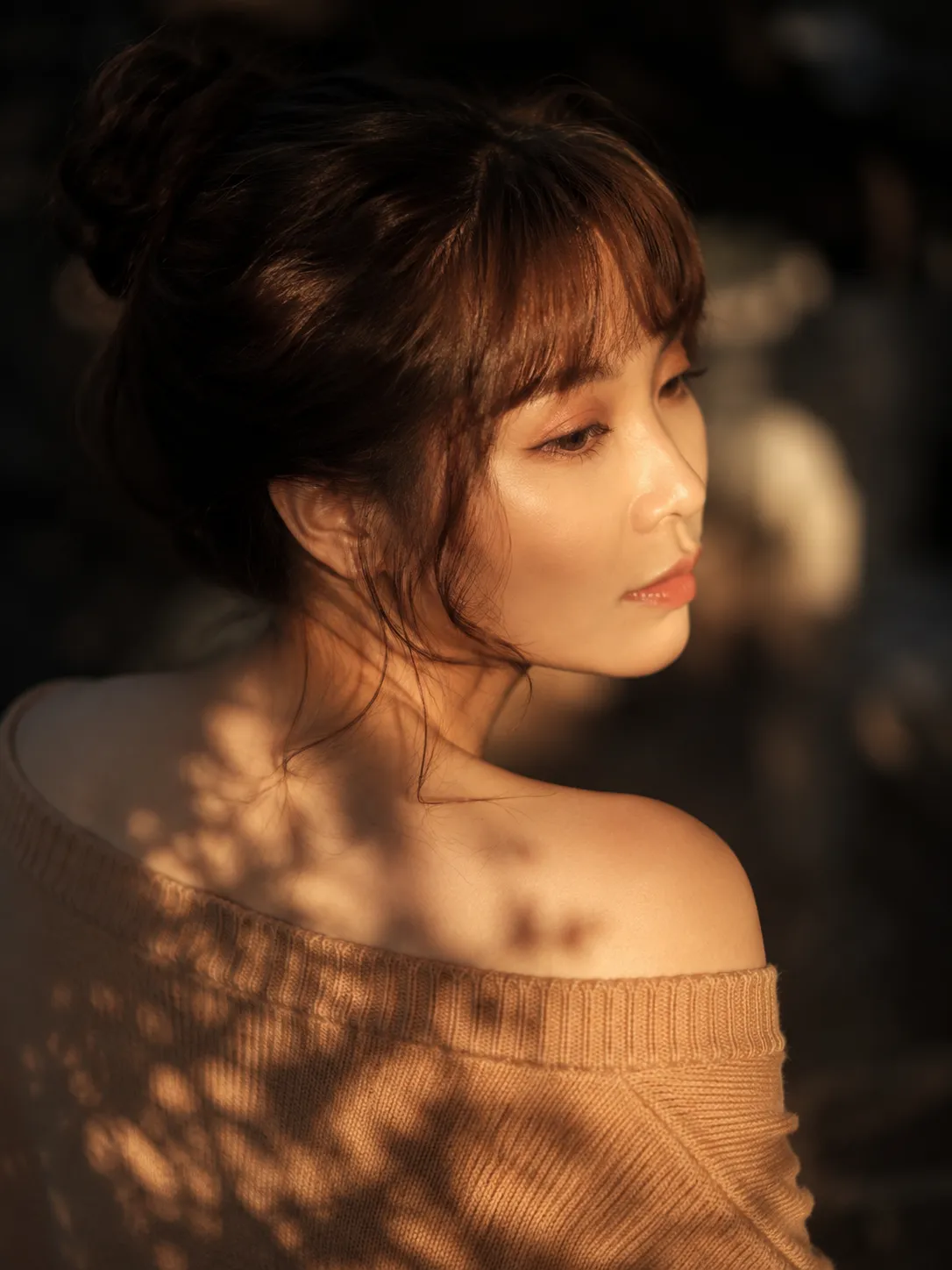
Change a Photo’s Lighting and Atmosphere
Relight and color-grade an uploaded photo while preserving its exact scene, composition, and contents.
By Threads — Published on
Screenshots


Prompt template
Use the uploaded photo as the strict source image.

Analyze the existing scene automatically and preserve everything already present: the exact composition, camera angle, perspective, framing, people, objects, architecture, landscape, proportions, materials, textures, and scene layout.

Do not add, remove, replace, redesign, reposition, or reconstruct anything.

Change only the lighting, color grading, atmosphere, and photographic mood. Transform the existing photograph into:

${atmosphere:cinematic warm golden hour}

Other atmosphere options include: moody rainy blue hour; dramatic sunset with warm highlights and cool natural shadows; soft overcast editorial photography with muted cinematic colors.

Adapt the lighting naturally to the environment shown in the uploaded image. Respect the existing geometry, surfaces, materials, depth, and light direction. Create physically believable highlights, shadows, reflections, atmospheric depth, and color relationships appropriate to the requested atmosphere.

Keep the result photorealistic and natural. Preserve realistic textures and fine details. Avoid oversaturation, fake HDR, artificial lens flares, fantasy lighting, unrealistic glowing objects, or structural changes.

The final result must look like the exact same photograph captured under the requested lighting and atmosphere and professionally color graded—not like a newly generated image.
Parameters
${atmosphere:cinematic warm golden hour}
atmosphere
Default: cinematic warm golden hour







Comments — 0