Create a Product Storyboard and Scene-Based Video
Use ChatGPT and OmniFlow to turn a product image into a 20-second storyboard and generate matching video clips in segments of up to 10 seconds.
By Threads — Published on
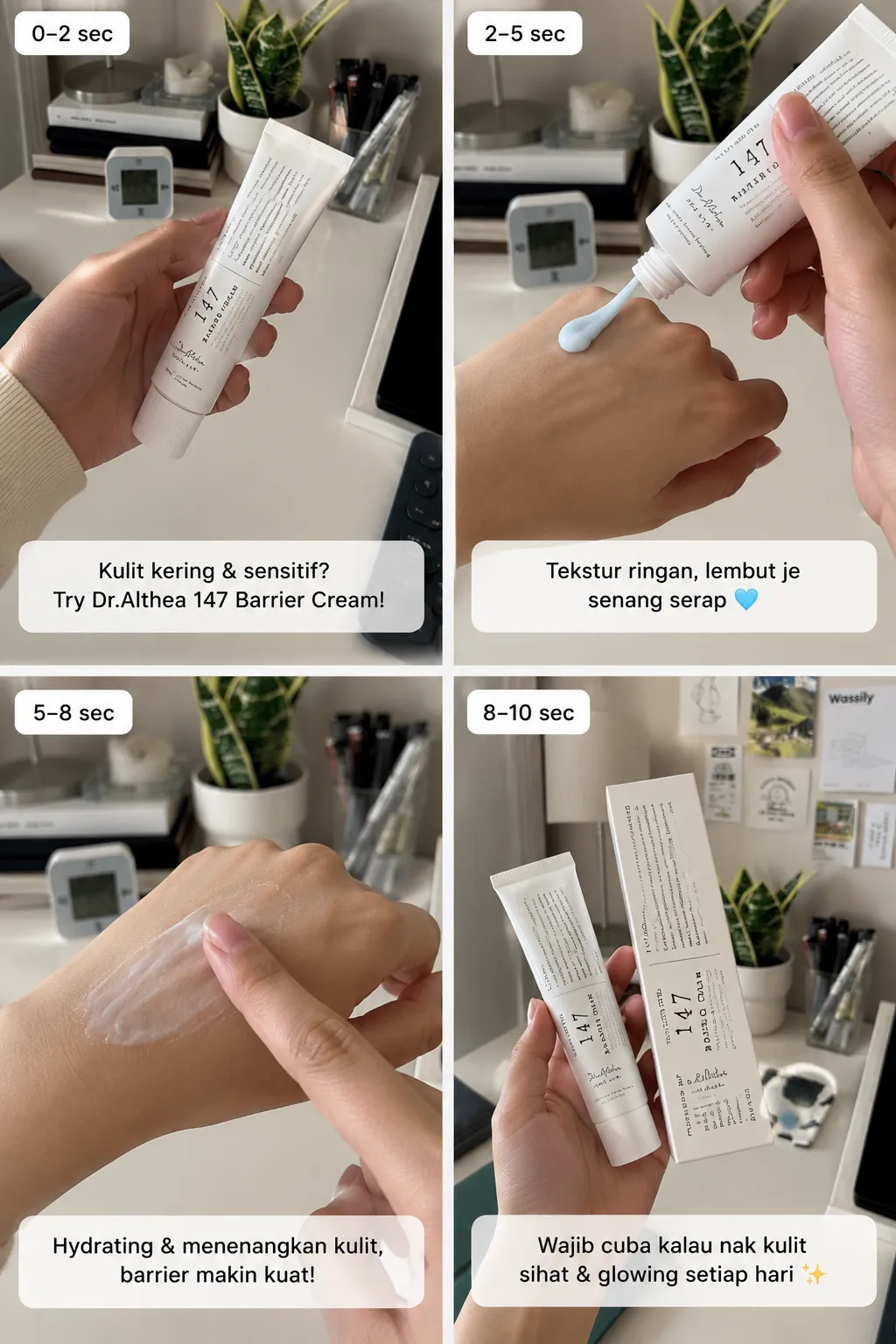
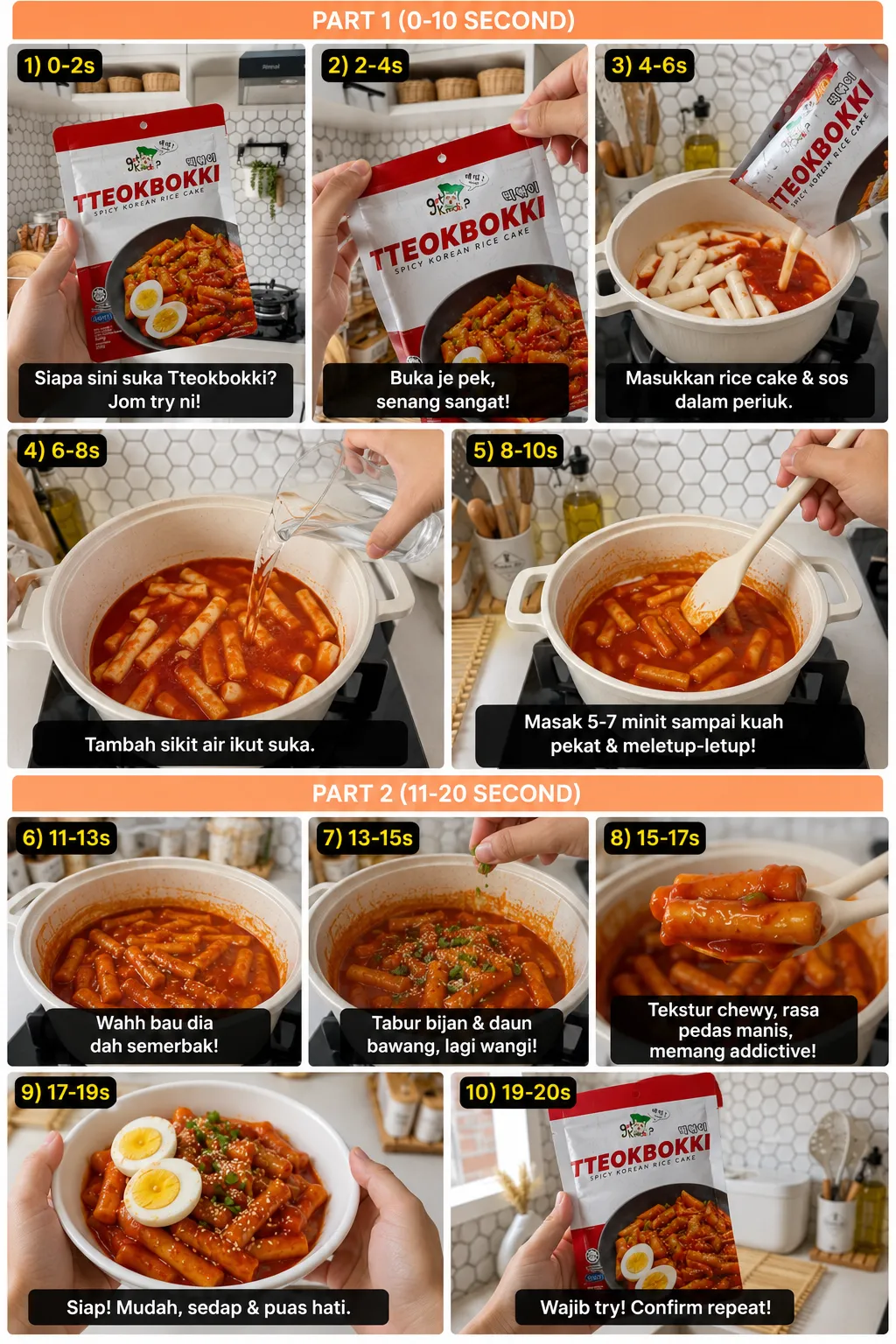
Example results
Screenshots


Prompt template
## 1. Create the storyboard in ChatGPT
Upload the original product image, then send:

“Generate a storyboard featuring the uploaded product: a human, Pixar-style character ${action:cooking steak happily}, for 20 seconds, with natural Malay dialogue. Keep the product consistent throughout the storyboard.”

Review the storyboard before generating video prompts. Check that the product and other details remain consistent across scenes.

## 2. Generate scene prompts in ChatGPT
Ask ChatGPT:

“Based on the storyboard and the original product image, write video-generation prompts for scenes ${scene-range:1–4}, covering 0–10 seconds. Match the storyboard and keep the product consistent.”

For later segments, request prompts for the next scene range. Keep each segment within OmniFlow’s 10-second limit.

## 3. Generate clips in OmniFlow
Upload both the storyboard and the original product image to OmniFlow. Paste the prompts for the relevant scenes and generate the clips. Repeat for later scene ranges as needed.

## 4. Assemble the video
Download the clips and combine them in CapCut or TikTok.
Parameters
${action:cooking steak happily}
action
Default: cooking steak happily
${scene-range:1–4}
scene-range
Default: 1–4




Comments — 0